

Custom Node Troubleshooting Guide
Check how to troubleshoot issues caused by custom nodes.
Common Issues & Quick Fixes
Before diving into detailed troubleshooting, try these common solutions:ComfyUI Won’t Start
Symptoms: Application crashes on startup, black screen, or fails to load Quick fixes:- Check system requirements - Ensure your system meets the minimum requirements
- Update GPU drivers - Download latest drivers from NVIDIA/AMD/Intel
Generation Fails or Produces Errors
Symptoms: “Prompt execution failed” dialog with “Show report” button, workflow stops executing Quick fixes:- Click “Show report” - Read the detailed error message to identify the specific issue
- Check if it’s a custom node issue - Follow our custom node troubleshooting guide
- Verify model files - See Models documentation for model setup
- Check VRAM usage - Close other applications using GPU memory
Slow Performance
Symptoms: Very slow generation times, system freezing, out of memory errors Quick fixes:- Lower resolution/batch size - Reduce image size or number of images
- Use memory optimization flags - See performance optimization section below
- Close unnecessary applications - Free up RAM and VRAM
- Check CPU/GPU usage - Use Task Manager to identify bottlenecks
Installation-Specific Issues
Desktop App Issues
For comprehensive desktop installation troubleshooting, see the Desktop Installation Guide.- Windows
- macOS
- Linux
- Unsupported device: Comfy Desktop Windows only supports NVIDIA GPUs with CUDA. Use ComfyUI Portable or manual installation for other GPUs
- Installation fails: Run installer as administrator, ensure at least 15GB disk space
- Maintenance page: Check mirror settings if downloads fail
- Missing models: Models are not copied during migration, only linked. Verify model paths
Manual Installation Issues
The documentation may be slightly out of date. If an issue occurs, please manually verify whether a newer stable version of pytorch or any of the listed libraries exists. Refer to resources like the pytorch installation matrix or the ROCm website.
Linux-Specific Issues
LD_LIBRARY_PATH errors: Common symptoms:- “libcuda.so.1: cannot open shared object file”
- “libnccl.so: cannot open shared object file”
- “ImportError: libnvinfer.so.X: cannot open shared object file”
- Modern PyTorch installations (most common):
- Find what libraries you have:
- Set permanently for your environment:
- Alternative: Use ldconfig:
- Debug library loading:
Model-Related Issues
For comprehensive model troubleshooting including architecture mismatches, missing models, and loading errors, see the dedicated Model Issues page.Network & API Issues
Partner Nodes Not Working
Symptoms: API calls fail, timeout errors, quota exceeded Solutions:- Check API key validity - Verify keys in user settings
- Check account credits - Ensure sufficient API credits
- Verify internet connection - Test with other online services
- Check service status - Provider may be experiencing downtime
Connection Issues
Symptoms: “Failed to connect to server”, timeout errors Solutions:- Check firewall settings - Allow ComfyUI through firewall
- Try different port - Default is 8188, try 8189 or 8190
- Disable VPN temporarily - VPN may be blocking connections
- Check proxy settings - Disable proxy if not required
Frontend Issues
“Frontend or Templates Package Not Updated”:- Disable node validation in ComfyUI settings
- Disable workflow validation in settings temporarily
- Report the issue to the ComfyUI team
- Normal login only works when accessing from localhost
- For LAN/remote access: Generate API key at platform.comfy.org/login
- Use API key in login dialog or with
--api-keycommand line argument
Hardware-Specific Issues
NVIDIA GPU Issues
“Torch not compiled with CUDA enabled” error:AMD GPU Issues
ROCm support (Linux only):Apple Silicon (M1/M2/M3) Issues
MPS backend setup:Intel GPU Issues
Option 1: Native PyTorch XPU support (Windows/Linux):Getting Help & Reporting Bugs
Before Reporting a Bug
-
Check if it’s a known issue:
- Search GitHub Issues
- Check ComfyUI Forum
- Review Discord discussions
-
Try basic troubleshooting:
- Test with default workflow
- Disable all custom nodes (see custom node troubleshooting)
- Check console/terminal for error messages
- If using comfy-cli, try updating:
comfy node update all
How to Report Bugs Effectively
For ComfyUI Core Issues
Where to report: GitHub IssuesFor Desktop App Issues
Where to report: Desktop GitHub IssuesFor Frontend Issues
Where to report: Frontend GitHub IssuesFor Custom Node Issues
Where to report: Contact the specific custom node developerRequired Information
When reporting any issue, include:1
System Information
- From ComfyUI Interface
- From Command Line
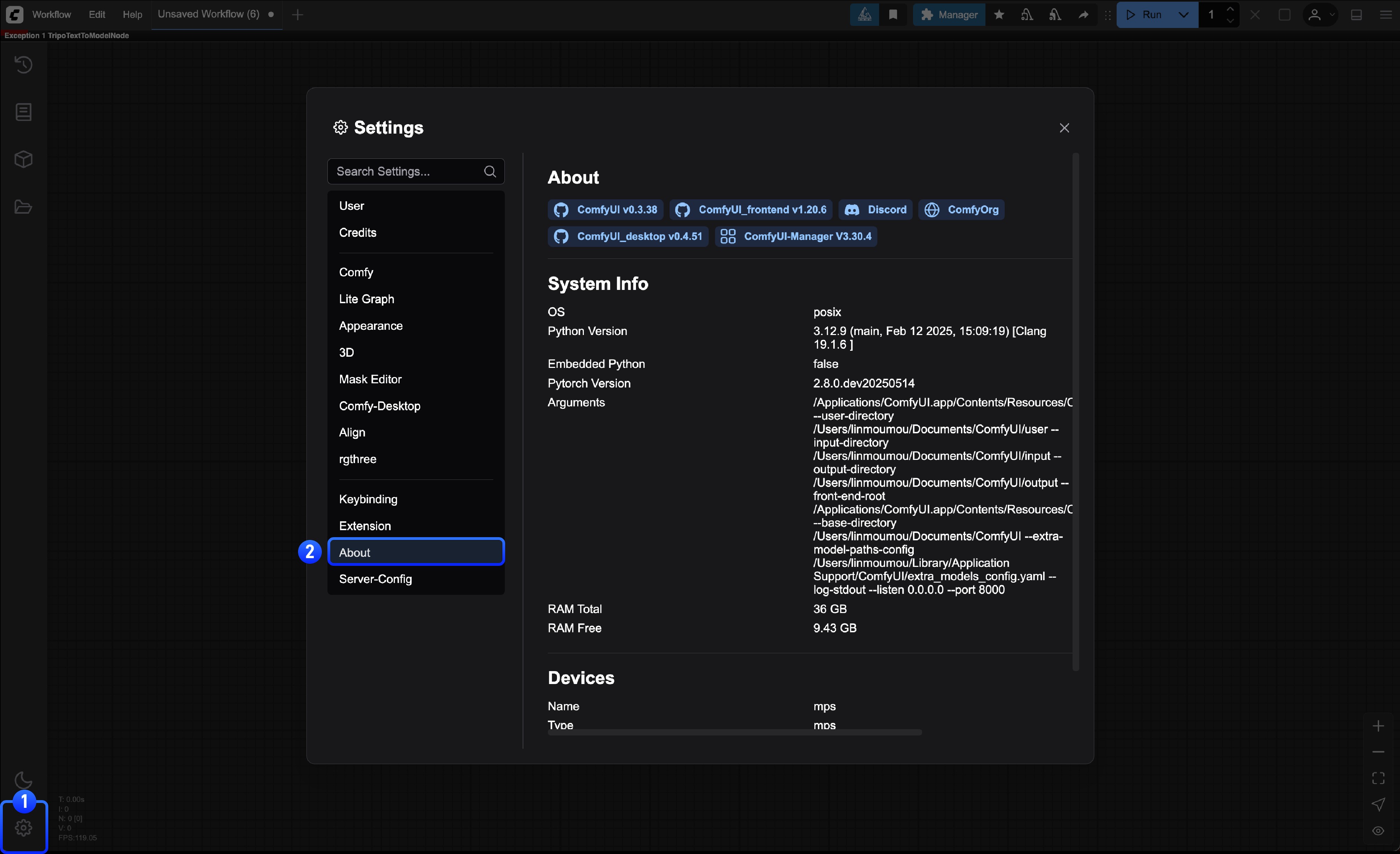
System Information (can be found in the About page in settings):
- Operating System (Windows 11, macOS 14.1, Ubuntu 22.04, etc.)
- ComfyUI version (check About page in settings)
-
Python version:
python --version -
PyTorch version:
python -c "import torch; print(torch.__version__)" - GPU model and driver version
-
Installation method (Desktop, Portable, Manual, comfy-cli)
2
Desktop App issues
For Desktop App issues, also include:
- Log files from:
C:\Users\<username>\AppData\Roaming\ComfyUI\logs(Windows) - Config files from:
C:\Users\<username>\AppData\Roaming\ComfyUI(Windows)
3
Problem Details
Problem Details:
- Clear description of the issue
- Steps to reproduce the problem
- Expected vs actual behavior
- Screenshots or videos if applicable
- Full error text from console/terminal
- Browser console errors (F12 → Console tab)
- Any crash logs or error dialogs
4
Additional Context
Additional Context:
- List of installed custom nodes
- Workflow file (.json) that reproduces the issue
- Recent changes (new installations, updates, etc.)
Community Resources
- Official Forum: forum.comfy.org
- Discord: ComfyUI Discord Server
- Reddit: r/comfyui
- YouTube: ComfyUI Tutorials